Reviewed 10 August 2026
A Practical Tour of the XX7 App and Its Mobile Controls
Instead of listing buttons without context, this page follows the jobs people usually need to do: confirm an account, find a game, read a balance label and leave a session cleanly.
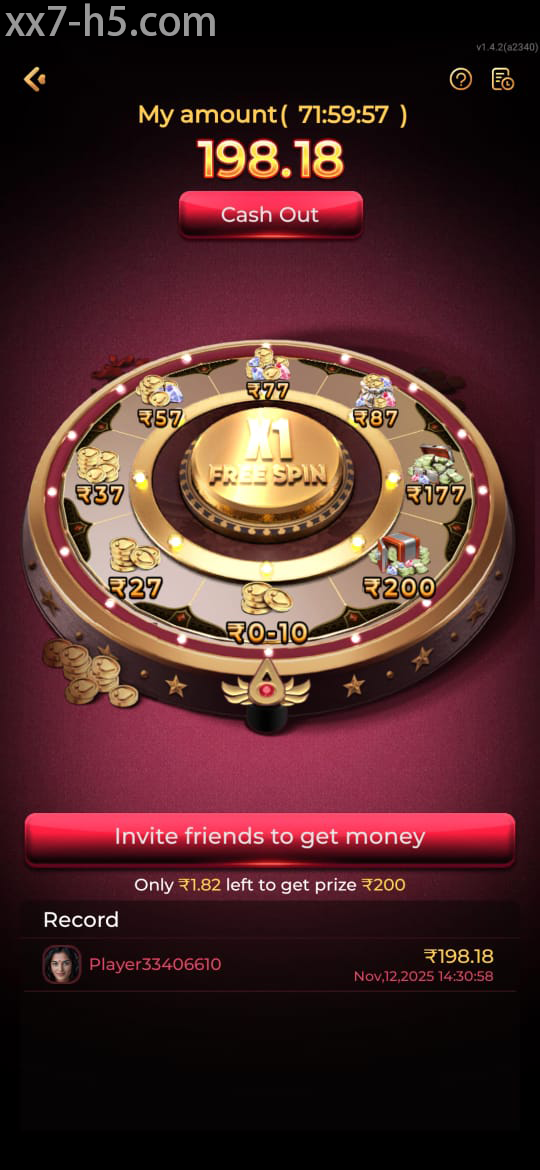
First look
Read the home screen as a map
The first screen usually groups account tools, game areas, notices and wallet labels. Locate those four areas before opening anything. Once you know where the account menu and session controls sit, it is easier to recognise a page that has loaded incorrectly.
Promotional panels can take more space than practical controls. Scroll deliberately and use the permanent navigation labels as landmarks. A banner may change from day to day, while the account, game and support routes should remain easier to identify.
Navigation
Open one category at a time
Game libraries feel crowded when several filters are changed at once. Start with one category, check the rules and return to the same menu before comparing another. This makes the back button predictable and keeps you from losing your place.
If a tile does not react, wait a moment before tapping again. Repeated touches during lag can open the wrong panel. On a compact display, increasing system text too far may also hide labels, so check the phone display setting if controls overlap.
- Use category names rather than banner artwork as a guide.
- Return to the lobby before moving to a different game type.
- Wait for a loading state to finish before tapping again.
- Keep the app updated only from a source you recognise.
Account labels
Do not guess what a wallet figure means
A displayed amount may refer to cash balance, a restricted reward or a pending record. Read the label and any attached terms before assuming funds are available for the same purpose. Similar colours do not make two balance types interchangeable.
Profile and verification pages also deserve a slow read. Correct your own details through the normal form or support route, and never send a password, OTP or recovery code in a general chat. A genuine correction should not require another person to log in as you.
Everyday performance
Fix the simple phone issues first
When pages feel slow, close unused apps and check whether mobile data is switching between networks. A nearly full phone can also make image-heavy screens pause. These small checks are more useful than immediately clearing every setting or reinstalling the app.
If one section alone keeps failing, note its name and the time of the problem. That detail gives support something specific to investigate and helps you avoid a vague message such as “the app is broken.”
Screen orientation
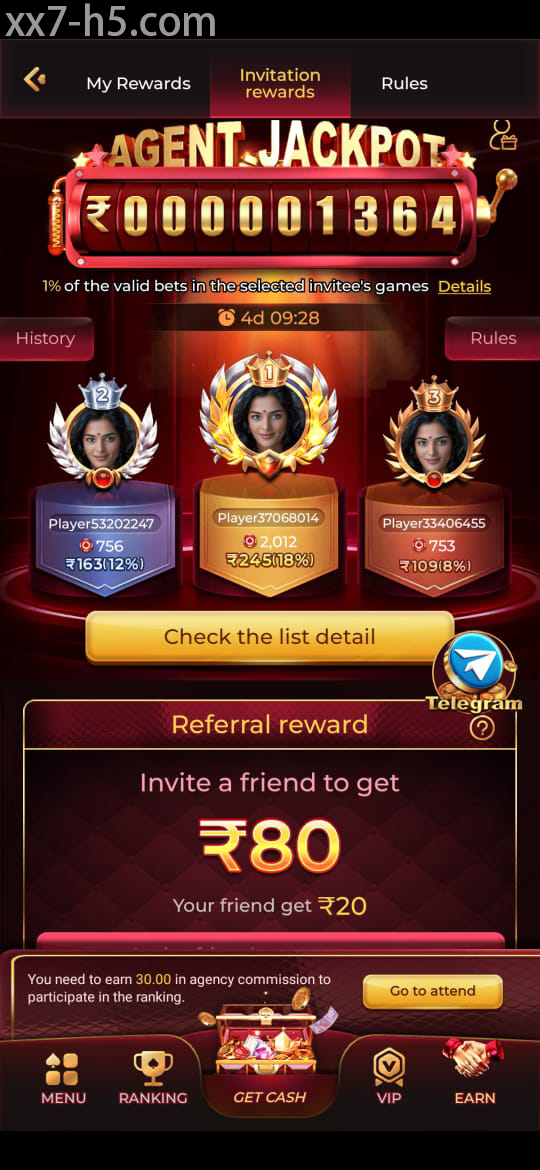
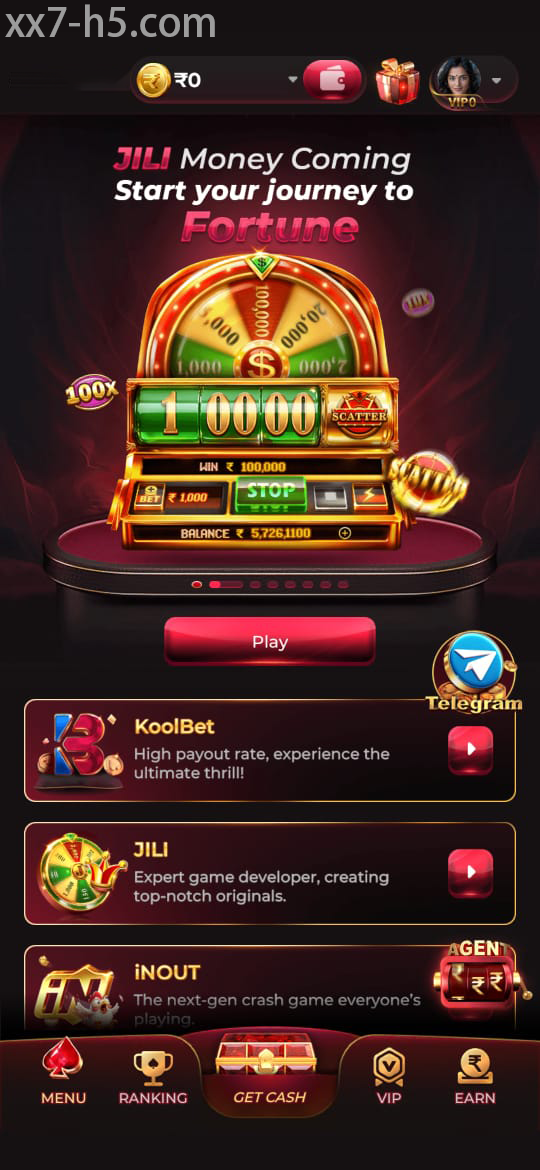
Three Screen Landmarks Worth Learning
These reference screens show where common app landmarks may appear. Follow the labels on the version installed on your phone.
Continue with the right topic
Next reads for everyday app use
Solve a blocked sign-in
For password, OTP or recovery trouble encountered while using the XX7 app dashboard.
Trace a screen that will not load
Compare the app, browser and connection before clearing data or reinstalling.
Understand lobby controls
For category, pace or session-limit questions raised by using the XX7 app dashboard.
Direct answers
Questions about using the XX7 app dashboard
Where should a new user begin in the XX7 app?
Find the account menu, game categories, wallet labels and support route before starting a session.
Why do app buttons sometimes open the wrong panel?
Lag and repeated taps are common causes. Wait for the first touch to register before pressing again.
Does every balance shown in the app work the same way?
No. Cash, promotional and pending amounts may follow different conditions, so read the label beside each figure.